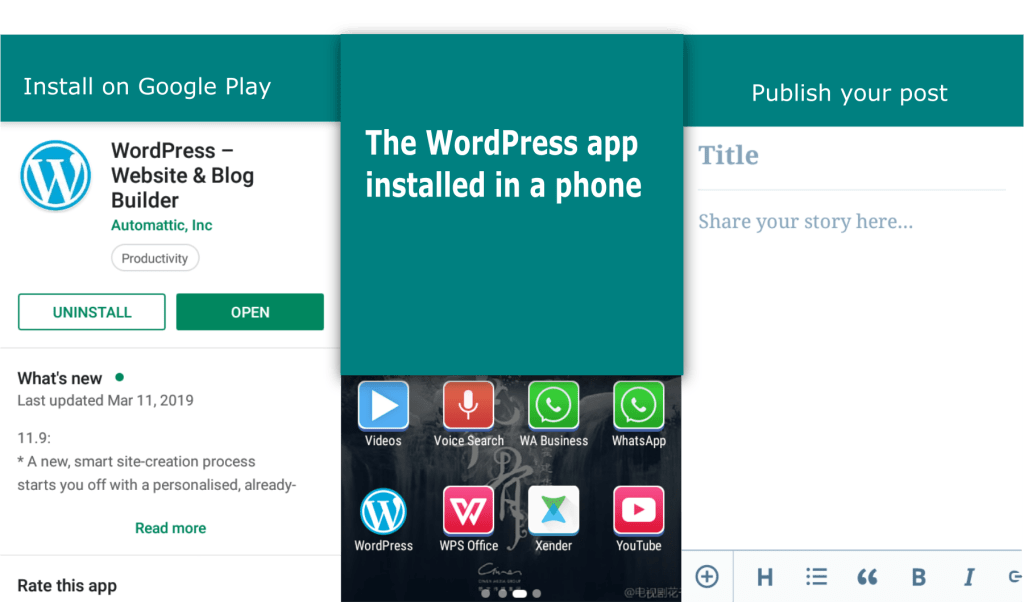
The WordPress app is created to make posting and other site building activities easier. For the app to serve its purpose which am sure it does, the user has to understand how to use it. If you are used to publishing blog post via your browser, you will be quick to notice that the app suites quick editing and quick publishing. It is more like Facebook.
So to get started, you have to install the app from Google play store. The next step will be to login. For those who don’t have a WordPress account, you have to create one first. To login, you will need the following details
- Web address/URL
- Email address
- Username
- Password
The web address, email and the username can be used alternatively but for the password, the user has to enter the exact one. Sometimes you will only be required to use your email to log into your account.
The app’s user interface
After a successful login, the app will open a window similar to this;
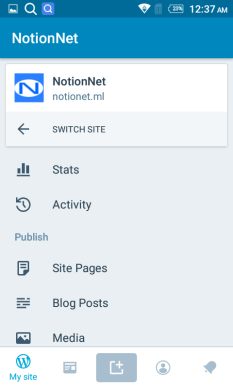
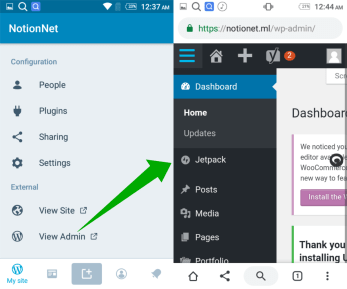
Here you can view your dashboard. You may want to view your stats, to publish a page or post, to change your sites appearance or to configure your site settings. If you are not comfortable with the interface, you can select “View Admin” on the menu. This open the default WordPress dashboard via your browser.
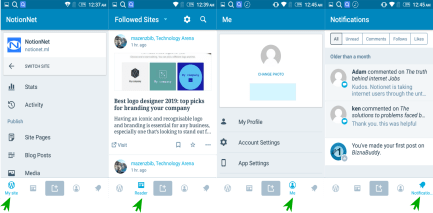
You can open the reader section. This will enable you to view blogs that you follow.you can click the “add new post ” button to publish a new post or the “Me” button to view your profile. Here you can also do some configuration on your account and app if need be. You may ant to check the notifications. You can open them by clicking the small bell icon at the bottom right side of your app. The notifications may include recent comments or notifications of posts you have just published.
Publishing posts with WordPress App
To make a post, click the “Add New Post” button.
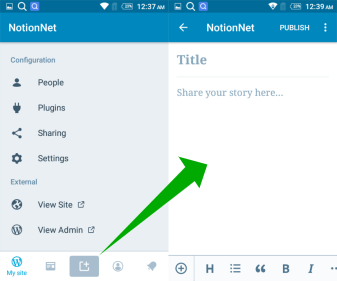
Here you can just add the title/topic of your post then publish a simple and short article. If not, you may want to do some editing to beautify your post.
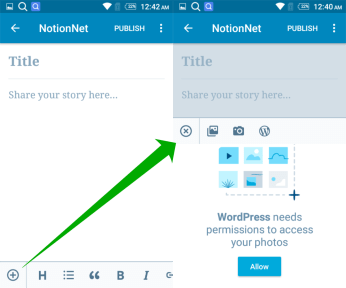
To add photos, click the plus button on the editor . It will open more options like taking a photo directly on your camera and adding it to your post, uploading one from your phone or choosing one of those in your media library.
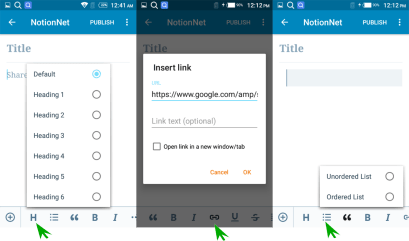
You may also want to add some headings to clarify your subtopics or to add some block quotes to emphasize a specific point in your blog post. To add a link, you can click the “add link” button on the editor. There is much you can do with the editor. All one needs is to get familiar with it.
when you are through with creating your post, the publish part comes with more options. To choose one of them, click the menu on the top left right part of the screen.

Here you can undo or redo changes in your post. If not ready to publish the post, you can save draft and start from where you stopped the next time you wish to add more to your article. you can also preview the post to see how it would appear to your website viewers. with the HTML Mode, you can post your content in text format (code) just like web developers do with the text editors like notepad++.
And that is all about posting with the WordPress app.
 Notionet
Leave a comment