For you to automatically publish and share your posts, you need Jetpack plugin installed in your wordpress site. Why jetpack? Because jetpack comes with a feature called publicize.
What does publicize do?
Publicize auto shares your post to all your connected social networks. I.e. facebook, twitter, LinkedIn or tumblr. Using facebook as an example, the post you share will be published in your timeline under your profile.
The post will be displayed with an except and a link to direct readers to your blog. You can even connect a facebook page. The feature supports many accounts under one social network. So you can add even three different twitter accounts and publish to all of them in one click. Awesome right?
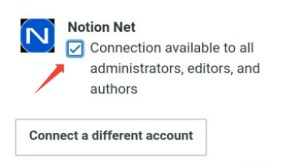
As you can see in this screenshot the feature is also accessible to other authors and editors. You can disable that by unchecking the box If that’s what you prefer.
How to use publicize?
First make sure jetpack is installed and active in your site. For wordpress.com users, jetpack is already installed.
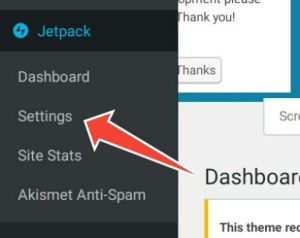
Go to jetpack in your WordPress dashboard. Then go to settings and select “Sharing”. In the sharing settings go to publicize. First switch on publicize then select connections.
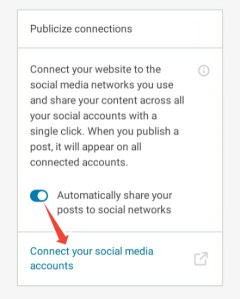
Under connections, you will view social media accounts that are connected and those that are not connected.
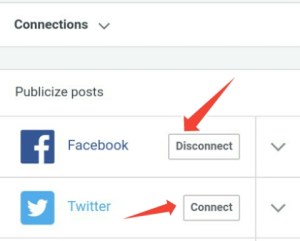
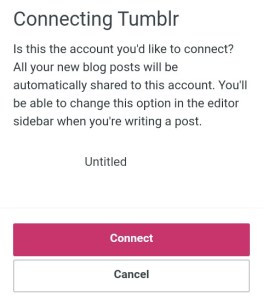
To connect, click the connect button. lets say you choose Tumblr. First you will be taken to tumblr to log in. The process is short and simple. Jetpack will notify you that the connection was successful.
After activating publicize and connecting some of your Social media accounts, you will be able to access publicize and its settings in the publish section of your posts and pages. You will also be able to see all your connected accounts under that section.

That’s how to start using jetpack’s publicize feature to auto share and auto publish posts on wordpress. For more assistance on setting up publicize, you can leave a comment.
 Notionet
Leave a comment